
17 KiB
Getting Started with NSPanel HA Blueprint
Welcome to this setup guide, a community-driven approach to integrating NSPanel into your smart home. Designed for users at all levels, it combines Home Assistant's user-friendly interface with ESPHome's customization options.
Whether you're a first-time smart device user or an enthusiast looking to personalize your setup, this guide provides the necessary tools and instructions. Let's embark on creating a smart home that's uniquely yours.
Note
Some images or instructions on this guide might be slighly different due to different configurations depending on your ESPHome and Home Assistant implementation or versions.
If you find something that is not understandable or needs to be updated, please let us know. You can create an issue reporting this, or fix it yourself and submit a Pull Request to this repository.
Summary
- Preparation
- ESPHome firmware
- Upload TFT
- Blueprint
- How to handle multiple panels
- Advanced configuration for ESPHome and Home Assistant experts
- Additional Tips and Resources
Preparation
Start by ensuring you have all the necessary tools and files. This includes your NSPanel device, a stable internet connection, and access to your Home Assistant instance.
If flashing it for the first time, please look for additional preparation and tools on the Flashing the device for the first time section later in this guide.
ESPHome Firmware
Preparing the ESPHome Environment
To flash your NSPanel, ESPHome firmware is required. ESPHome can be integrated into your setup in various ways, including as a Home Assistant add-on or through a local installation on your computer. This guide is based on using the ESPHome dashboard, which is available in all standard implementations.
-
Installing ESPHome as a Home Assistant Add-On: For seamless integration with Home Assistant, ESPHome can be installed as an add-on. This method provides an easy-to-navigate interface and direct integration with your Home Assistant setup. For detailed instructions on this installation method, refer to Getting Started with ESPHome and Home Assistant.
-
Manual Installation of ESPHome: A manual installation on your computer might be preferred if your Home Assistant's host is resource-limited and struggles with compiling ESPHome projects. Standalone installations on a normal computer typically offer faster and more efficient compiling. This method is ideal if you're working with a system that doesn't support Home Assistant add-ons or if you prefer a separate management environment for your ESPHome devices. Detailed steps for a manual installation can be found in the guide Installing ESPHome Manually.
Setting Up a Device on ESPHome Dashboard
Follow these steps to add a new device in the ESPHome Dashboard:
-
Click the + New Device button.
-
Enter a unique name for your new ESPHome device.

-
Select ESP32 as the device type.

-
Click Skip as we're not starting the installation yet.
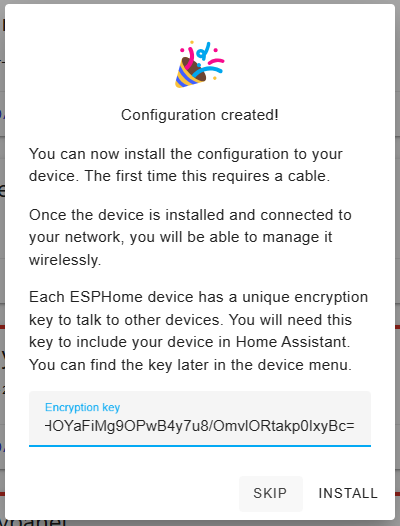
-
Locate your newly created device in the ESPHome Dashboard and click Edit.
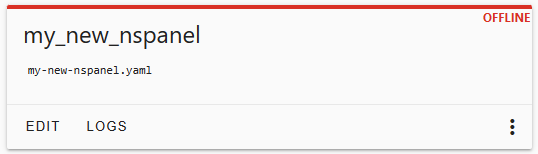
-
(Optional) For enhanced security, consider copying the
api:section to a temporary file.

-
Note the device name at the beginning of the file under
esphome.

-
Clear all existing content and paste the following YAML configuration:
substitutions:
  # Settings - Editable values
  device_name: "YOUR_NSPANEL_NAME"
  wifi_ssid: !secret wifi_ssid
  wifi_password: !secret wifi_password
  nextion_update_url: "http://homeassistant.local:8123/local/nspanel_eu.tft"
  # Add-on configuration (if needed)
  # heater_relay: "1" # possible values: 1/2

# Customization area
##### My customization - Start #####
##### My customization - End #####

# Core and optional configurations
packages:
  remote_package:
    url: https://github.com/Blackymas/NSPanel_HA_Blueprint
    ref: main
    files:
      - nspanel_esphome.yaml # Core package
      # Optional advanced and add-on configurations
      # - advanced/esphome/nspanel_esphome_advanced.yaml
      # - nspanel_esphome_addon_climate_cool.yaml
      # - nspanel_esphome_addon_climate_heat.yaml
      # - nspanel_esphome_addon_climate_dual.yaml
    refresh: 300s

esp32:
  framework:
    type: esp-idf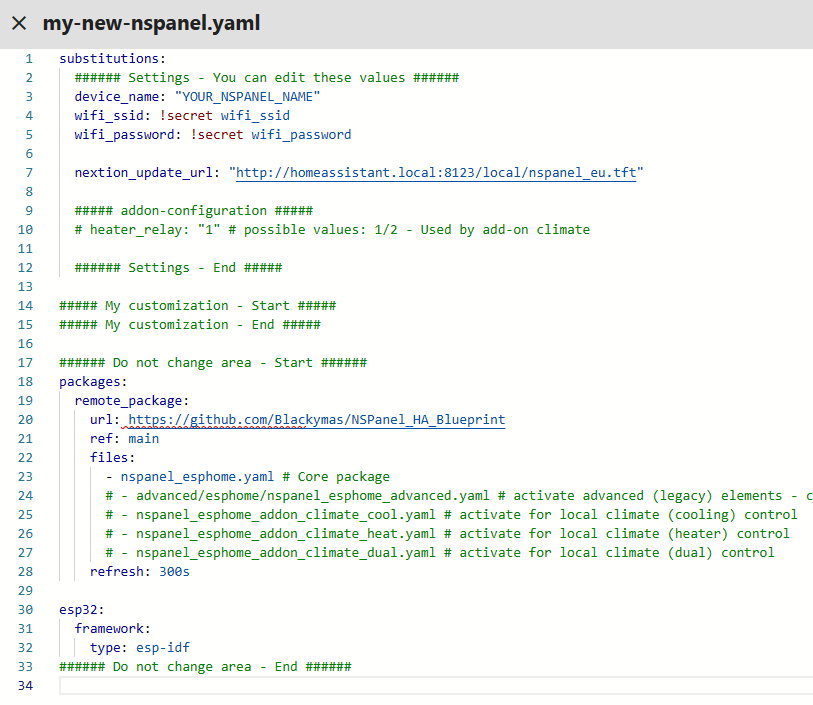
-
Modify the Settings section with your device name (as noted in step 7) and Wi-Fi details.
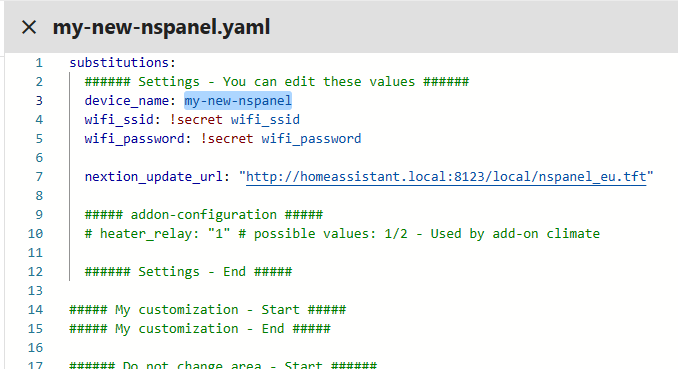
-
For Wi-Fi credentials, use
!secretfor added security or input them directly. Learn about secrets in ESPHome: Home Assistant Secrets in ESPHome. -
Optionally, adjust
nextion_update_urlto the URL of a TFT file hosted on an HTTP or HTTPS server, ensuring that the file is accessible to the NSPanel. This URL will be used by ESPHome to download the TFT file to your panel. For more information on hosting the TFT file and setting up the URL, see the Upload TFT section. -
(Optional) Enhance security with API encryption by adding the copied key from step 6 to the My Customization area.
-
After finalizing settings, click Save and close the YAML window.


Your NSPanel is now configured in your ESPHome Dashboard.
Flashing the Device for the First Time
Drive Safe
⚠️ WARNING
Disconnect your panel's controller module from main power during all work.
Operating on an open device that's plugged into the wall puts you at risk of electrocution.
⚠️ CAUTION
You are solely responsible for your own safety.
If you're uncomfortable or if something feels wrong, stop immediately.
- Use only electronic components rated for 3.3VDC. Ensure your TTL adapter is set to 3.3VDC. Exceeding this voltage can cause permanent damage to your panel.
- Maintain a clean work area to prevent damage to your device, especially the screen.
- Keep all small parts, like screws and cables, safely stored.
Required Tools
For first-time flashing of your NSPanel with ESPHome, you may need:
- USB-to-Serial TTL adapter
- Jumper wires
- Breakable headers (optional)
- Appropriate screwdriver to disassemble your panel's controller module (touch plate)
Connecting Your Device via USB-to-Serial TTL Interface
Before disassembling your panel, review the following resources:
- YouTube - Mark Watt Tech - HOW TO - Setup the SIMPLEST Smart Home Scene Controller
- @blakadder's Sonoff NSPanel EU Switch in Detail
- ESPHome - Physically Connecting to Your Device
Pending: (Pictures of the board & wiring will be added here)
Pending: (Steps to generate firmware on ESPHome Dashboard will be added here)
Pending: (Steps to flash the firmware using serial TTL will be added here)
Integrating your panel to Home Assistant
Pending:
Making changes Over The Air (OTA)
Pending: (add instructions how to flash wirelessly)
Updating
Pending: (add instructions how to flash wirelessly)
Pending: (considerations - update all to the same version)
Migrating from other custom firmware
The installation in a NSPanel with Sonoff's original firmware should be straighforward, however, if you have installed some other custom firmware before, you may have additional steps to execute.
NSPanel Lovelace UI
If you have already installed on your NSPanel the "nspanel-lovelace-ui" firmware from @joBr99 or from Tasmota, an intermediate step is necessary. Please execute that first before returning here.
Other
Please try the standard process and if you find any issue, please create a new issue and inform which custom firmware you have installed before migrating to NSPanel HA Blueprint.
Upload TFT
Pending:
Select the right file
Pending:
Uploading to Nextion
Pending:
Troubleshooting TFT transfer issues
We have an useful guide for troubleshooting TFT transfer issues. Please take a look there.
Blueprint
In this area we will provide guidance on how to import the blueprint from our GitHub repository to your Home Assistant, use that to create a new automation to setup your panel and how to update the blueprint when a new version is available.
All these processes are quite easy with the latest versions of Home Assistant, but please come back to us if you have any question or if something isn't very clear.
Importing the blueprint
Home Assistant makes this step very easy for you. Just click the button bellow and follow it's steps:

Creating an automation
Now that Home Assistant is equiped with our Blueprint, you have to create a new automation using that newly imported Blueprint. Please follow these steps:
- On Home Assistant, go to Settings, then Automations & Scenes and then click on the tab Blueprints. Or just follow the link from the button bellow.

- Find the Blueprint named NSPanel Configuration and click on it.
- On the Blueprint settings, select your panel on the NSPanel device input (the very first input).
- Fill the other relevant entries on the Blueprint settings and then hit the Save button.
- Give a name for your automation. Anything that would help you to identify it later. Then click Rename.
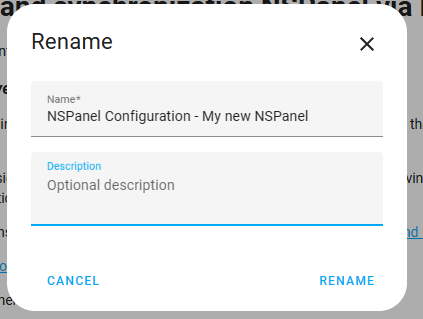

That's it.
Tip
For a more compreehensive list of what you can do on your panel's settings, please refeer to the Blueprint guide.
Editing the settings in your automation
You can always edit the settings in your automation to add some new configuration, edit some existing configuration or remove things.
In order to edit it, in Home Assistant, go to Settings and then Automations & Scenes or click on the button bellow:

On the Automations page, fnd your automation in the list and click on it.
After changing the settings, please remember to click on Save to send the new settings to your panel. It shouldn't take more than a few seconds for your panel to receive the new settings, however some changes won't be visible until the page is reloaded.
Tip
For a more compreehensive list of what you can do on your panel's settings, please refeer to the Blueprint guide.
How to handle multiple panels
If you have multiple panels, just repeat the steps above for each panel. You should have one entry per panel on the ESPHome Dashboard, on entry (device) per panel under Home Assistant integrations (Settings > Devices & Services > ESPHome) and one automation per panel under Home Assistant automations.
Important
Make sure you don't have the same panel assigned to more than one automation. Unfortunatly Home Assistant don't offers a mechanism to prevent this situation which could drive to your panel not showing what is expected and an unnecessary load over Home Assistant and your Wi-Fi network.
Advanced configuration for ESPHome and Home Assistant experts
Warning
Customizations and advanced mode are not supported by this project's team. Use this with caution and only when you know what you are doing.
Before you start customizing your system, we would like to invite you to share anything nice you achieve. You can always create a new Pull Request to dev branch and this will give a chance for other users with similar challenges to take advantage of your discoveries.
ESPHome
The simpler way to go "advanced" with ESPHome is to use "Customizations". We have a page specifically for that where, again, your contribution is very welcome: Customization
If you want for some reason use a local copy of nspanel_esphome.yaml, you can copy the file from GitHub to you local file system and reference in your ESPHome settings like this:
substitutions:
  ###### Settings - You can edit these values ######
  device_name: "YOUR_NSPANEL_NAME"
  wifi_ssid: !secret wifi_ssid
  wifi_password: !secret wifi_password

  nextion_update_url: "http://homeassistant.local:8123/local/nspanel_eu.tft"

  ##### addon-configuration #####
  # heater_relay: "1" # possible values: 1/2 - Used by add-on climate

  ###### Settings - End #####

##### My customization - Start #####
##### My customization - End #####

###### Do not change area - Start ######
packages:
  local_package: !include packages/nspanel_esphome.yaml

esp32:
  framework:
    type: esp-idf
###### Do not change area - End ######
Note
Note that a sub-folder was used in the example above in order to avoid that file to be added as an additional device in your ESPHome dashboard.
You can also have the file in the same folder, but with it's name starting with., so ESPHome dashboard understands that file should be ignored when listing devices.
Blueprint
The Blueprint file nspanel_blueprint.yaml can also be installed manually or you can edit locally your copy of the Blueprint, however be aware that your changes will be lost if you reload the Blueprint from the repository.
TFT file
On the GitHub repository you will find all the .HMI files used in this project. You can use the Nextion Editor to modify those files and generate your own .tft files to be loaded to your device.
For a better understanding on how to use Nextion, please use the following documentation:
Additional Tips and Resources
Tip
We have an useful guide for troubleshooting TFT transfer issues. Please take a look there first.
After troubleshooting, if issues persist, consult the Issues and feel free to create a new one asking for more personalized assistance.
Please share as much info as possible, like:
- Describing (or a picture of) what is in your screen
- Are updating from a previous version of this same project, or coming from another NSPanel customization (which one?) or customizing for the first time a panel with original Sonoff settings?
- Please share the ESPHome logs from when your panel starts to the moment the upload fails.
- Describe what you have already tried.
Important note
Remember, these steps are a guideline and might vary slightly based on your specific setup and previously installed system.